*better: More thorough, more relevant, more effective.
...more Alerts, more All Clears, more details, more control in your hands.
|
|
Foxhound is the better* Database Monitor for SQL Anywhere.
*better: More thorough, more relevant, more effective.
...more Alerts, more All Clears, more details, more control in your hands.
|
| [Home] | [Table of Contents] | [Previous Section] | [Next Section] |
Breck Carter
Last modified: February 12, 1998
mail to: bcarter@bcarter.com
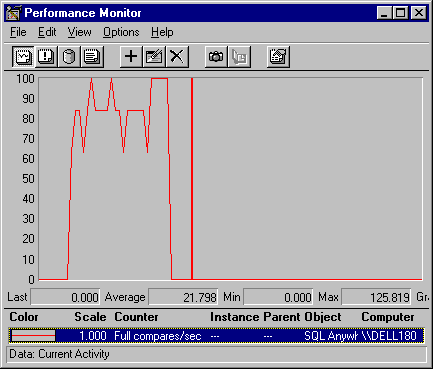
The NT Performance Monitor is preferable to SQL Central because it offers more statistics and it is not intrusive (the results aren't skewed by running the monitor itself). Here is a step-by-step demonstration of how to start the Performance Monitor under NT4 and watch the "Full Compares/sec." index lookup statistic:
Figure 25A - Configuring The NT Performance Monitor
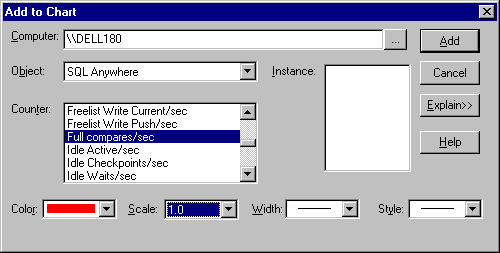
Figure 25B - Force A Wide Index Lookup
|
Figure 25C - Full Compares/sec. In The NT Performance Monitor
| [Home] | [Table of Contents] | [Previous Section] | [Next Section] |